
Taste for Mac
Your design taste, on your Mac, where your coding agents work. Save and rate designs, read your Taste Profile, and connect Codex, Claude Code, Cursor or ChatGPT.
What does Taste for Mac do?
Taste for Mac is where you build your Taste Profile and connect it to the AI tools you build with. You save designs you like, react to designs in short games, and Taste writes a profile of your taste. Connected tools read that profile, and the designs behind it, through Taste MCP before they design for you.
The app also captures screenshots and records your screen with Capture Studio. It needs macOS 15 or later.
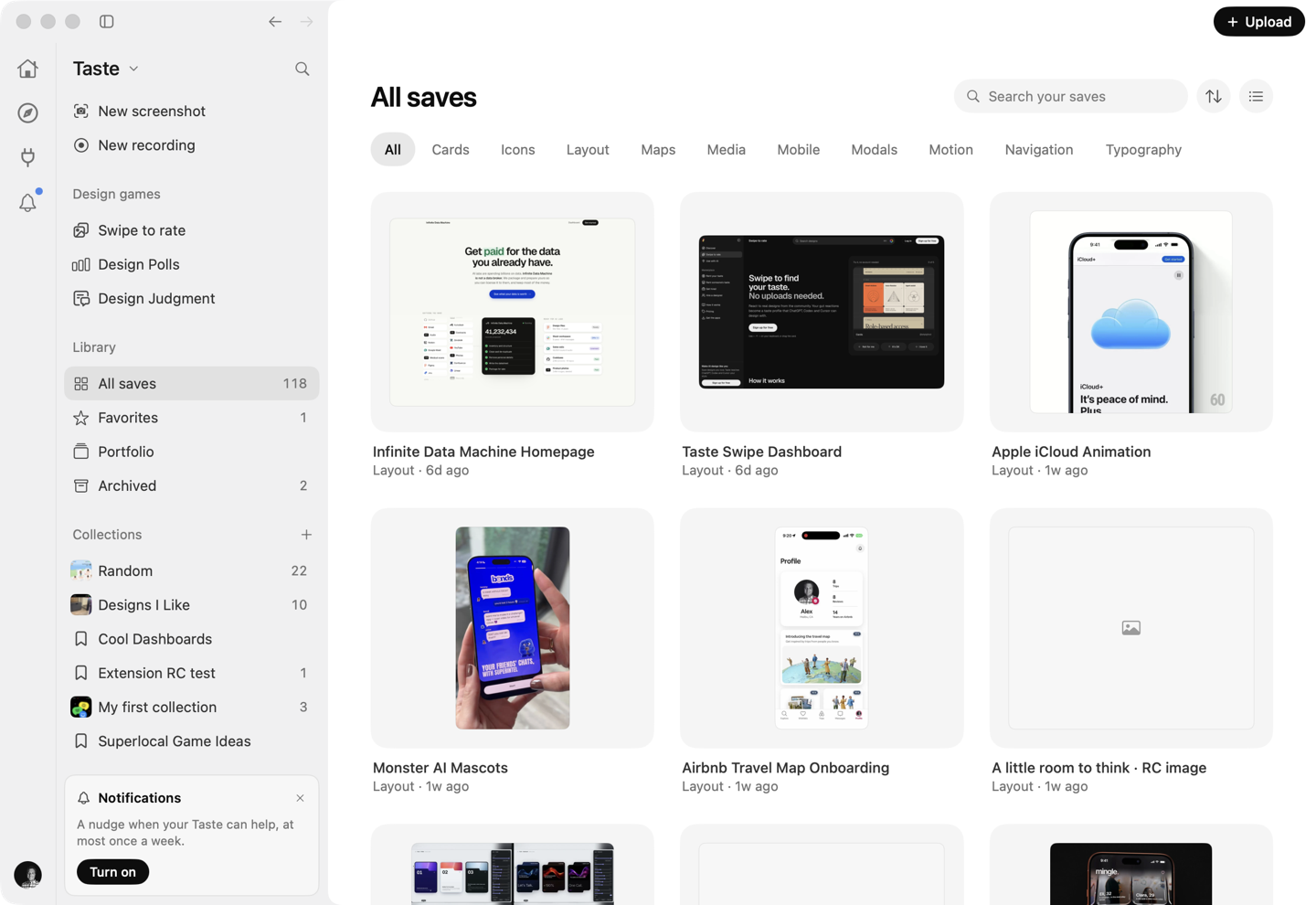
How is the app laid out?
The narrow rail on the left switches between My Taste, Discover, AI tools and Notifications. Beside it, the sidebar lists New screenshot and New recording, the design games, your library (All saves, Favorites, Portfolio, Archived) and your collections. Upload is always at the top right.
Fold the sidebar with the button beside the window controls, or press Control-Command-S. Back and forward are Command-[ and Command-].
What is on My Taste?
My Taste opens with your Taste Profile: a one-line summary, the traits Taste sees in your references, and the designs the summary is based on. Update profile rewrites it from everything you have added since.
The button at the top right shows which AI tools are connected, or offers to connect one. When a connected tool has used your profile recently, the page says which tool and when.
How do AI agents use my taste from the Mac app?
Connecting is done once per tool from AI tools. After that, the tool can request your profile, references and notes through Taste MCP. Nothing needs to be copied or pasted.
Most coding agents call Taste only when the conversation asks for it. For Codex and Claude Code on this Mac, turn on “Check my Taste before UI work” in the Your agents card. Taste adds a short note to that tool’s instructions file (AGENTS.md for Codex, CLAUDE.md for Claude Code) so it checks your taste before any UI task. Turn it off at any time and the note is removed.
“See what your agents read” shows your written profile so you can check it before an agent relies on it.
An agent can also ask you a quick either/or design question while it works, and leave a receipt on My Taste that names the saved designs it used.
What are the design games?
Three short ways to teach Taste more about your eye, each a minute or two.
Swipe to rate shows one design at a time: Left Arrow for Not for me, Up Arrow for It’s OK, Right Arrow for Love it, and Z to undo your last reaction. Design Polls show a design and ask which one change you would make. Design Judgment asks for four short written reflections on one design, then a verdict.
Does Taste for Mac have a light mode?
Yes, from version 0.6.1. Open Settings, then General, then Appearance, and choose Dark, Light or Match system. Dark is the default.
The main window follows this setting. Capture, recording and the menu bar window stay dark.
How do I save a design from my Mac?
Use New screenshot to capture part of your screen, New recording to record an interaction, or Upload to add an image you already have. Each becomes a reference in your library that you can annotate and put in a collection.
Designs you save with the Taste browser extension also appear in your library on Mac.
How do I get the latest version?
Taste for Mac checks for updates automatically. To check now, open Settings, then General, and choose Check for updates. New installs can download the current version from the download page.